
SSL/TLS Certificate Name Mismatch Error: What It Is, Why It Happens, and How to Fix It in Production

It’s 2:17 AM. Your on-call phone buzzes. A customer reports that your app is throwing a security warning and they can’t log in. You SSH in, curl the endpoint, and see it:
curl: (60) SSL: no alternative certificate subject name matches target host name ‘api.yourapp.com’Your browser refuses to load the page. Your API clients start throwing exceptions. Your monitoring dashboard turns red. And the worst part? Everything looks fine on the server.
This is the SSL/TLS Certificate Name Mismatch Error, one of the most common, most misunderstood, and most avoidable production incidents in backend engineering.
In this post, we’ll go deep. You’ll learn exactly what causes this error, how it manifests across browsers, curl, and microservices, and most importantly how to fix it at the production level with real commands and real configuration examples.
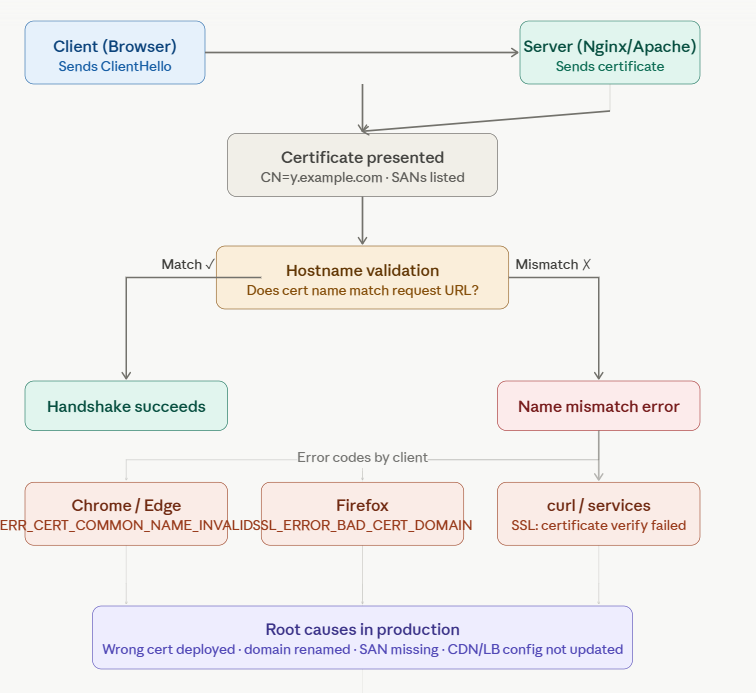
What Is a Certificate Name Mismatch?
When a browser or HTTP client connects to a server over HTTPS, it performs a handshake. Part of that handshake involves verifying that the domain name you’re connecting to matches the name embedded in the TLS certificate the server presents.
If those two don’t match, the client throws a Name Mismatch error and refuses the connection by design. This is a security feature, not a bug.
The official error codes you’ll encounter:
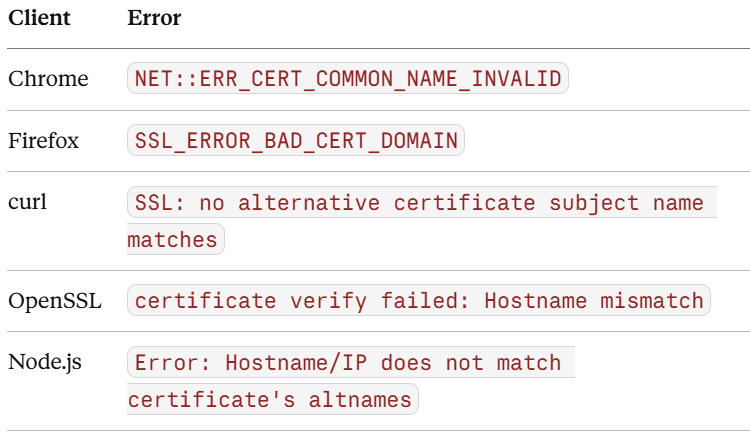
Where the name lives in a certificate
A certificate identifies the domain it belongs to in two places:
CN (Common Name) — the traditional field, e.g.
CN=api.mystore.comSAN (Subject Alternative Name) — the modern standard, a list of all valid domains the cert covers
Modern browsers and clients primarily check the SAN list. If SANs are present, the CN is often ignored entirely. This trips up a lot of engineers who update the CN but forget to add the domain to the SAN extension.
The Real-World Scenario That Triggers This
Let’s walk through a concrete production example.
Your company runs an e-commerce platform originally hosted at api.shop.com. You rebrand, and the new domain is api.mystore.com. Your DevOps team issues a new certificate for api.mystore.com and deploys it to the Nginx server.
But here’s what gets missed:
DNS still resolves
api.shop.comto the same IPMobile apps still call
https://api.shop.com/v1/ordersInternal microservices still reference
api.shop.comin their config filesYour load balancer’s HTTPS listener still holds the old certificate
Now every single one of those clients connects to a server presenting a certificate that says api.mystore.com, while they asked for api.shop.com. The mismatch is immediate and total.
How TLS Validates Domain Names
A TLS certificate carries two fields that browsers check:
1. Subject CN (Common Name) — Deprecated
Old certificates used the Subject: CN=example.com field to declare the domain. Browsers historically matched this against the requested hostname.
2. Subject Alternative Name (SAN) — The Modern Standard
Since RFC 2818 (2000) and enforced by all major browsers since 2017, clients only validate against the Subject Alternative Name (SAN) extension not the CN. A certificate can list multiple SANs:
X509v3 Subject Alternative Name:
    DNS:example.com
    DNS:www.example.com
    DNS:api.example.com
    IP Address:203.0.113.42
If the hostname you’re connecting to doesn’t appear in this SAN list, you get a name mismatch.
Why Does It Happen? The Most Common Causes in Production
1. Wrong Domain on the Certificate
You issued a cert for www.example.com but users access example.com (without www). These are treated as distinct hostnames.
Check it:
openssl s_client -connect example.com:443 -servername example.com \
  2>/dev/null | openssl x509 -noout -text | grep -A5 “Subject Alternative”
2. Wildcard Certificate Doesn’t Cover All Subdomains
A wildcard cert *.example.com covers api.example.com and app.example.com — but not example.com itself, and critically, not api.staging.example.com (two levels deep). Wildcards only cover one label deep.
*.example.com  ✅ covers: api.example.com
*.example.com  ❌ does NOT cover: example.com
*.example.com  ❌ does NOT cover: v2.api.example.com
3. Load Balancer or Reverse Proxy Presenting the Wrong Certificate
In production, your traffic often flows:
Client → CDN/Load Balancer → Nginx/HAProxy → App ServerIf your Nginx config is serving the wrong ssl_certificate, or if SNI (Server Name Indication) is misconfigured and it falls back to the default virtual host’s cert — you get a mismatch.
Check your Nginx config:
server
{
    listen 443 ssl;
    server_name api.example.com;         # Must match your cert’s SAN
    ssl_certificate /etc/ssl/api.crt;    # Verify this cert covers the server_name above
    ssl_certificate_key /etc/ssl/api.key;
}
4. Certificate Wasn’t Reloaded After Renewal
You renewed the cert. You even deployed it. But you forgot to reload the web server, so it’s still serving the old, expired (or mismatched) certificate from memory.
# Nginx: check what cert is actually being served
echo | openssl s_client -connect api.example.com:443 -servername api.example.com 2>/dev/null \
  | openssl x509 -noout -dates

# Compare that with what’s on disk
openssl x509 -noout -dates -in /etc/ssl/certs/api.crt
5. Internal Services Using IP Addresses Instead of Hostnames
Microservices talking to each other over TLS? If Service A connects to 10.0.1.45 and the cert only lists DNS:payments.internalmismatch. You either need an IP Address SAN entry in the cert or use DNS instead of bare IPs.
X509v3 Subject Alternative Name:
    DNS:payments.internal
    IP Address:10.0.1.45     # <-- needed if you connect by IP
6. Kubernetes Ingress / cert-manager Misconfiguration
A very common production failure. You update your Ingress resource to add a new host, but forget to add it to the tls.hosts list, or the cert-manager Certificate object’s dnsNames. The ingress controller serves the old cert.
# Wrong — new host added to rules but not tls

spec:

 tls:
    - hosts:
        - app.example.com        # api.example.com missing here!
      secretName: example-tls

 rules:
    - host: app.example.com
    - host: api.example.com      # cert doesn’t cover this
7. Local Development: Hitting Prod by Mistake
/etc/hosts overrides, VPN tunnels, or misconfigured .env files can cause your local client to hit a production (or staging) server that has a cert for a different domain than what your code expects.
The Other Common Production Root Causes
1. Domain renamed, certificate not updated (or deployed in wrong order)
You issued the new certificate first, deployed it, then planned to update DNS. But traffic was still hitting the old domain name. This is the most common cause, and it happens during migrations.
2. Wrong certificate pushed to the wrong server
You manage multiple servers like api, admin, cdn. A deployment script accidentally pushes the admin.mystore.com certificate to the api server. Everything passes CI because the cert is valid but it’s just on the wrong machine.
3. TLS termination at the load balancer, not the origin
This catches a lot of engineers off guard. In modern architectures, SSL/TLS is often terminated at an AWS ALB, Cloudflare, or Nginx reverse proxy, not at the application server. If you update the cert on the application server but forget the load balancer, the load balancer keeps presenting the old cert to clients.
4. Missing SAN entries
You need both mystore.com (apex domain) and www.mystore.com to work. Your certificate only lists www.mystore.com in its SAN field. Visitors hitting the apex domain fail because the cert doesn’t cover it.
How to Diagnose It (Before You Touch Anything)
Before making any changes, understand exactly what’s happening. These commands are your first line of investigation.
Check what cert the server is actually serving
openssl s_client -connect api.shop.com:443 -servername api.shop.com 2>/dev/null \
  | openssl x509 -text -noout | grep -E “CN=|DNS:”
This tells you the exact CN and SAN fields in the certificate your server is presenting. Compare this to the domain you’re connecting to.
Check cert details including expiry
echo | openssl s_client -connect api.mystore.com:443 2>/dev/null \
  | openssl x509 -noout -dates -ext subjectAltName
Test a specific SNI name (critical for multi-domain setups)
openssl s_client -connect 203.0.113.42:443 -servername api.mystore.comUse this when the same IP serves multiple domains via SNI. You can pass different -servername values to see which cert each virtual host returns.
Online tools
SSL Labs (ssllabs.com/ssltest) — deep scan, grades your full TLS configuration
whatsmycert.com — quick SAN field inspection
crt.sh — search certificate transparency logs for any cert issued for your domain
How to Diagnose It Quickly
Step 1 — Inspect the live certificate
openssl s_client -connect your-domain.com:443 -servername your-domain.com \
  2>/dev/null | openssl x509 -noout -text | grep -A 10 “Subject Alternative Name”
Step 2 — Check all SANs with a one-liner
echo | openssl s_client -connect your-domain.com:443 \
  -servername your-domain.com 2>/dev/null \
  | openssl x509 -noout -ext subjectAltName
Step 3 — Test with curl verbosely
curl -v https://your-domain.com 2>&1 | grep -E “(subject|issuer|SSL|error)”Step 4 — Check what cert Nginx/Apache is configured to serve
# Nginx
grep -rn “ssl_certificate “ /etc/nginx/
nginx -T | grep ssl_certificate

# Apache
grep -rn “SSLCertificateFile” /etc/apache2/
Step 5 — Verify cert expiry and SANs on disk vs. live
# On disk
openssl x509 -noout -text -in /path/to/cert.pem | grep -A5 “Subject Alternative”

# Live
echo | openssl s_client -connect domain.com:443 -servername domain.com \
  2>/dev/null | openssl x509 -noout -text | grep -A5 “Subject Alternative”
How to Fix It
Fix 1: Reissue the Certificate with the Correct SANs
This is the real fix in most cases. You need a cert that lists every hostname you serve.
With Let’s Encrypt / Certbot:
certbot certonly --nginx \
  -d example.com \
  -d www.example.com \
  -d api.example.com \
  -d staging.example.com
With cert-manager in Kubernetes:
apiVersion: cert-manager.io/v1
kind: Certificate
metadata:
  name: example-tls
spec:
  secretName: example-tls
  issuerRef:
    name: letsencrypt-prod
    kind: ClusterIssuer
  dnsNames:
    - example.com
    - www.example.com
    - api.example.com       # Add every host you need
Fix 2: Reload the Web Server After Cert Renewal
# Nginx
sudo nginx -t && sudo systemctl reload nginx
# Apache
sudo apachectl configtest && sudo systemctl reload apache2# With Certbot deploy hooks (automate this)
# /etc/letsencrypt/renewal-hooks/deploy/reload-nginx.sh
#!/bin/bash
systemctl reload nginxFix 3: Fix SNI on Your Load Balancer / Proxy
For AWS ALB: Ensure your certificate is attached to the listener and the correct rule is routing to the right target group. You can attach multiple certificates to an ALB listener, SNI handles the rest.
For Nginx acting as a reverse proxy:
server
 {
    listen 443 ssl;
    server_name api.example.com;

    ssl_certificate     /etc/ssl/api.example.com.crt;
    ssl_certificate_key /etc/ssl/api.example.com.key;

    # When proxying to upstream, pass the correct SNI
    proxy_ssl_server_name on;
    proxy_ssl_name api.internal.example.com;
}
Fix 4: Internal Services — Use DNS or Add IP SANs
Option A — Switch internal services to use DNS names instead of bare IPs.
Option B — If you must use IPs, generate your cert with an IP SAN using OpenSSL:
# openssl.cnf
[req]
req_extensions = v3_req

[v3_req]
subjectAltName = @alt_names
[alt_names]
DNS.1 = payments.internal
IP.1  = 10.0.1.45
openssl req -new -key server.key -out server.csr -config openssl.cnfFix 5: Temporary Workaround (Never in Production!)
Sometimes you need to bypass name validation during a debugging session but never in production code or CI pipelines.
# curl — skip verification (debug only!)
curl -k https://your-domain.com

# Node.js - disable verification (NEVER in prod)
process.env.NODE_TLS_REJECT_UNAUTHORIZED = ‘0’;
This disables ALL TLS verification and makes you vulnerable to MITM attacks. Remove it the moment you’re done debugging.
Prevention: Build This into Your Deployment Pipeline
1. Pre-deploy cert check script
#!/bin/bash
DOMAIN=”api.example.com”
EXPIRY_THRESHOLD=30  # days

EXPIRY=$(echo | openssl s_client -connect $DOMAIN:443 \
  -servername $DOMAIN 2>/dev/null \
  | openssl x509 -noout -enddate \
  | cut -d= -f2)

EXPIRY_EPOCH=$(date -d “$EXPIRY” +%s)
NOW_EPOCH=$(date +%s)
DAYS_LEFT=$(( ($EXPIRY_EPOCH - $NOW_EPOCH) / 86400 ))
echo “Certificate for $DOMAIN expires in $DAYS_LEFT days”
if [ $DAYS_LEFT -lt $EXPIRY_THRESHOLD ]; then
  echo “WARNING: Certificate expiring soon!”
  exit 1
fi

# Check SAN covers our domain
SAN=$(echo | openssl s_client -connect $DOMAIN:443 -servername $DOMAIN \
  2>/dev/null | openssl x509 -noout -ext subjectAltName)
if echo “$SAN” | grep -q “$DOMAIN”; then
  echo “SAN check passed for $DOMAIN”
else
  echo “ERROR: $DOMAIN not in certificate SAN!”
  exit 1
fi
2. Monitoring
Add synthetic monitors (Datadog, Pingdom, UptimeRobot) that:
Alert 30 days before certificate expiry
Alert immediately on certificate hostname mismatch
Verify the live cert’s fingerprint matches what you deployed
3. Automate Renewal
Use Let’s Encrypt with auto-renewal + deploy hooks:
# /etc/cron.d/certbot
0 3 * * * root certbot renew --quiet --deploy-hook “systemctl reload nginx”
Or in Kubernetes, cert-manager handles this automatically once configured correctly.
Production-Level Fixes
Fix 1 — Reissue the certificate with the correct domain
The most straightforward fix when the old domain is fully decommissioned.
Using Let’s Encrypt + Certbot:
# Issue a fresh cert for the new domain
sudo certbot certonly --nginx -d api.mystore.com
# Verify the SAN fields before deploying
openssl x509 -in /etc/letsencrypt/live/api.mystore.com/cert.pem \
-text -noout | grep -A5 “Subject Alternative Name”# Reload Nginx with zero downtime
sudo nginx -t && sudo systemctl reload nginxFix 2 — SAN certificate covering both old and new domains (best for migrations)
During a migration window where traffic may arrive at either domain, issue one cert that covers both. This is the professional approach zero downtime, both names work simultaneously.
sudo certbot certonly --nginx \
  -d api.shop.com \
  -d api.mystore.com \
  -d www.mystore.com \
  -d mystore.com
Your resulting SAN block will look like:
X509v3 Subject Alternative Names:
  DNS:api.shop.com
  DNS:api.mystore.com
  DNS:www.mystore.com
  DNS:mystore.com
Once all clients are migrated to the new domain, reissue with only the new names.
Fix 3 — Wildcard certificate (cleanest for multi-subdomain architectures)
If you run many subdomains on the same root domain — api, admin, cdn, auth, dashboard — a wildcard certificate is the cleanest long-term solution.
# Use DNS challenge (required for wildcards with Let’s Encrypt)
sudo certbot certonly --dns-route53 \
  -d mystore.com \
  -d “*.mystore.com”
One cert now covers every subdomain. Important limitation: wildcards cover one level only. *.mystore.com covers api.mystore.com but not v2.api.mystore.com. For deeper nesting, you need explicit SAN entries.
Fix 4 — Updating the certificate at the load balancer
When TLS terminates at a load balancer, you must update the cert there.
AWS ALB via CLI:
# Import the new certificate to ACM
aws acm import-certificate \
  --certificate fileb://cert.pem \
  --private-key fileb://key.pem \
  --certificate-chain fileb://chain.pem \
  --region us-east-1
# Attach to your ALB HTTPS listener
aws elbv2 add-listener-certificates \
--listener-arn arn:aws:elasticloadbalancing:us-east-1:123456789:listener/app/my-alb/abc123 \
--certificates CertificateArn=arn:aws:acm:us-east-1:123456789:certificate/xyz789Nginx reverse proxy — correct virtual host setup:
server
 {
    listen 443 ssl;
    server_name api.mystore.com;   # Must exactly match your cert’s CN or SAN

    ssl_certificate     /etc/ssl/certs/api.mystore.com.fullchain.pem;
    ssl_certificate_key /etc/ssl/private/api.mystore.com.key;
    ssl_protocols TLSv1.2 TLSv1.3;
    ssl_ciphers HIGH:!aNULL:!MD5;
   location /
{
        proxy_pass http://127.0.0.1:3000;
    }
}
Cloudflare: Ensure the SSL/TLS mode is set to Full (strict) and that the certificate in your Cloudflare dashboard matches your current domain. Cloudflare supports custom certificates under SSL/TLS → Edge Certificates.
The Migration Checklist (What Most Teams Miss)
When renaming domains or rotating certificates in production, run through this before you deploy:
1. New cert issued with correct CN and SAN fields — verified via openssl
2. Cert covers ALL variants: apex domain, www, API subdomain
3. Load balancer / CDN updated — not just origin servers
4. Nginx/Apache server_name directive matches new cert name
5. Internal microservices updated to call new domain
6. Mobile app API base URL updated (with old version grace period planned)
7. DNS TTL lowered before cutover, raised after
8. Monitoring alert set for SSL cert expiry (30/14/7 day thresholds)
9. Tested with openssl s_client from multiple network locations
10. Old cert revoked after full traffic migration confirmed
Automate Certificate Management at Scale
No production team should be manually renewing certificates. These tools handle issuance, renewal, and deployment automatically:
Production Example: Multi-Tier Kubernetes Stack
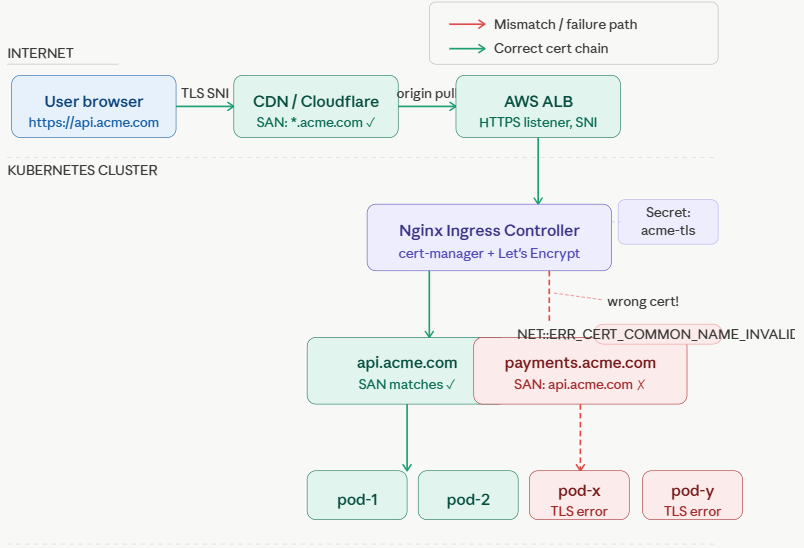
The Stack
Your company runs a SaaS product on AWS with this architecture:
User → Cloudflare CDN → AWS ALB → Nginx Ingress (K8s) → MicroservicesYou have two public-facing services: api.acme.com and payments.acme.com. Both sit behind the same Kubernetes Ingress controller, managed by cert-manager with a Let’s Encrypt Cluster Issuer.
What Happened
A developer added the payments service last sprint. They updated the Ingress resource with a new rule for payments.acme.com, deployed it, and moved on. The service came up healthy. Kubernetes showed no errors.
Three weeks later, your monitoring fires: payment flows are failing for roughly 18% of users specifically those on corporate networks where TLS errors are not silently bypassed.
The Diagnostic Session
Step 1 — Reproduce with curl:
curl -v https://payments.acme.com/health 2>&1 | grep -E “SSL|subject|issuer|error”

# Output:
* SSL: no alternative certificate subject name matches
*   target host name ‘payments.acme.com’
* SSL certificate subject: OU=acme, CN=api.acme.com
* subjectAltName does not match payments.acme.com
* Closing connection 0
curl: (60) SSL: no alternative certificate subject name matches target host name ‘payments.acme.com’
The cert being served has CN=api.acme.com and its SAN only lists api.acme.com. But your client is connecting to payments.acme.com.
Step 2 — Inspect the live certificate:
echo | openssl s_client -connect payments.acme.com:443 \
  -servername payments.acme.com 2>/dev/null \
  | openssl x509 -noout -text | grep -A6 “Subject Alternative”

# Output:
X509v3 Subject Alternative Name:
    DNS:api.acme.com
    DNS:www.acme.com
payments.acme.com is nowhere in that SAN list.
Step 3 — Find the cert-manager Certificate object:
kubectl get certificate -n production

# NAME         READY   SECRET       AGE
# acme-tls     True    acme-tls     42d
kubectl describe certificate acme-tls -n production | grep -A10 “DNS Names”
# DNS Names:
# api.acme.com
# www.acme.comFound it. The Certificate resource was never updated when the new service was added.
Step 4 — Check the Ingress:
kubectl get ingress -n production -o yaml | grep -A20 “tls:”

# tls:
#   - hosts:
#       - api.acme.com
#       - www.acme.com
#       # payments.acme.com is missing here too
#     secretName: acme-tls
Both the Certificate object’s dnsNames and the Ingress resource’s tls.hosts are missing the new domain.
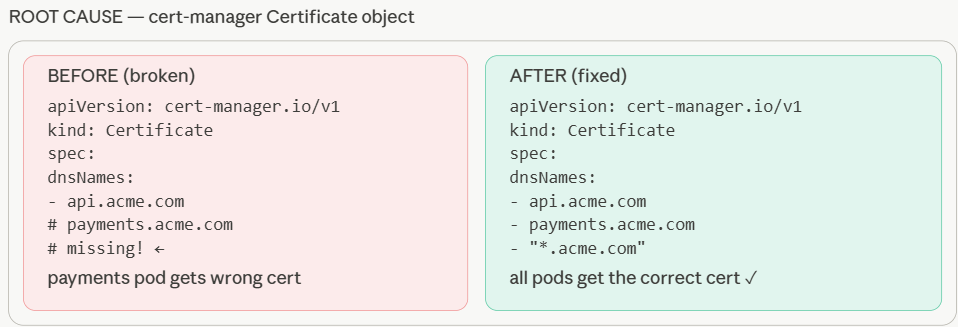
The Root Cause
The developer added payments.acme.com to the spec.rules section of the Ingress (so the routing worked), but forgot to:
Add it to
spec.tls[0].hostsin the IngressAdd it to
dnsNamesin theCertificateobject
The Ingress controller happily routed traffic to the payments service — but it served the old certificate (which only covered api.acme.com) during the TLS handshake. Strict TLS clients rejected it.
The Fix
Fix the Certificate object:
apiVersion: cert-manager.io/v1
kind: Certificate
metadata:
  name: acme-tls
  namespace: production
spec:
  secretName: acme-tls
  issuerRef:
    name: letsencrypt-prod
    kind: ClusterIssuer
  dnsNames:
    - api.acme.com
    - www.acme.com
    - payments.acme.com       # Added
    - “*.acme.com”            # Optional: wildcard to prevent this happening again
Fix the Ingress resource:
spec:
  tls:
    - hosts:
        - api.acme.com
        - www.acme.com
        - payments.acme.com   # Added
      secretName: acme-tls
  rules:
    - host: api.acme.com
      ...
    - host: payments.acme.com
      ...
Apply both, and cert-manager will automatically request a new certificate from Let’s Encrypt covering all three domains. The Ingress controller will reload with the new secret within ~90 seconds.
Verify the fix:
# Watch cert-manager issue the new cert
kubectl get certificate acme-tls -n production -w

# NAME       READY   SECRET     AGE
# acme-tls   False   acme-tls   0s   ← Requesting...
# acme-tls   True    acme-tls   47s  ← Issued!

# Confirm the new SAN
echo | openssl s_client -connect payments.acme.com:443 \
  -servername payments.acme.com 2>/dev/null \
  | openssl x509 -noout -ext subjectAltName

# X509v3 Subject Alternative Name:
#   DNS:api.acme.com, DNS:www.acme.com, DNS:payments.acme.com
Preventing This in the Future
Add a validation step to your CI/CD pipeline. Before any Ingress change merges:
#!/bin/bash
# scripts/validate-ingress-certs.sh
# Run this in CI before deploying Ingress changes

NAMESPACE=”production”
INGRESS_HOSTS=$(kubectl get ingress -n $NAMESPACE -o jsonpath=’{.items[*].spec.tls[*].hosts[*]}’)
CERT_SANS=$(kubectl get certificate -n $NAMESPACE -o jsonpath=’{.items[*].spec.dnsNames[*]}’)

for HOST in $INGRESS_HOSTS; do
  if echo “$CERT_SANS” | grep -qw “$HOST”; then
    echo “✓ $HOST is covered by a certificate”
  else
    echo “✗ $HOST has NO matching certificate SAN - will cause mismatch!”
    exit 1
  fi
done
And in your Ingress PR template, add a checklist item:
## Checklist
- New hostname added to `spec.rules`- [ ] Same hostname added to `spec.tls[*].hosts`
- Same hostname added to `cert-manager Certificate dnsNames`
- CI cert-validation script passed
Key Takeaways
SSL/TLS Certificate Name Mismatch isn’t a mysterious error, it’s a straightforward contract violation. The client asked for domain X, the server presented a certificate for domain Y, and the TLS protocol correctly rejected the connection.
To avoid it in production:
Always verify SAN fields, not just the CN, before deploying a new cert
Update TLS at the termination point — which is usually your load balancer, not your app server
Use SAN certs during migrations so both old and new domains work simultaneously
Automate certificate management so human error is removed from the equation
Run
openssl s_clienttests before and after every cert change, from outside your own network
The five minutes you spend validating a certificate before deployment can save hours of incident response, lost revenue, and frustrated users staring at a red padlock.
Final Thought
The Name Mismatch error is your TLS stack working exactly as intended — refusing to connect to a server it can’t verify. That’s a good thing. Rather than patching around it, fix the root cause: make sure every domain name your clients use appears in your certificate’s SAN list, and automate checks so you catch drift before your users do.
Sleep better at 2 AM.