
You Will Mess Up in Git. Here’s How to Fix It Without Panic.
A practical, no-BS guide to undoing mistakes in Git — from small slip-ups to full-blown disasters.


Git is the backbone of modern software development, enabling developers and DevOps engineers to track changes, collaborate efficiently, and manage code history. However, even experienced developers occasionally run into situations where they need to undo a commit, recover lost work, or temporarily save unfinished changes.
This is where Git’s powerful recovery and history-management commands come into play.
Commands like Git Reset, Git Revert, Git Stash, and Git Reflog provide developers with the ability to safely manage mistakes, recover deleted commits, and maintain a clean commit history. Whether you’re fixing a faulty commit, switching branches during development, or recovering work after an accidental reset, these tools are essential for maintaining productivity and code stability.
Understanding the difference between these commands is critical because each one serves a different purpose in Git workflow management:
Git Reset helps rewrite local commit history.
Git Revert safely undoes commits in shared repositories.
Git Stash temporarily saves work in progress.
Git Reflog helps recover commits that appear lost.
In this guide, we’ll explore each command in detail, including practical examples, real-world development scenarios, and best practices for using them safely in collaborative environments.
By the end of this article, you’ll have a clear understanding of when to use reset, revert, stash, or reflog, helping you manage Git history with confidence and avoid common mistakes.
Why Git Recovery Skills Are Important
In real-world development environments, mistakes are inevitable. You might:
Commit incorrect code
Push broken changes to a repository
Accidentally delete commits
Need to switch branches while your work is incomplete
Git’s recovery commands allow developers to safely undo changes without losing valuable work.
Knowing how to use these commands effectively is especially important in modern development workflows that involve:
CI/CD pipelines
Multi-developer repositories
Feature branching strategies
Production deployments
Understanding Git History and Commit Safety
Before diving into the commands, it’s important to understand how Git tracks changes.
Git stores project history through commits, which represent snapshots of your project at specific points in time.
Three important components exist in Git:
Working Directory – The files you are currently editing
Staging Area (Index) – Files prepared for the next commit
Repository History – The stored commits
Each command we’ll discuss interacts with these components differently.
For example:
Git Reset changes commit history.
Git Revert creates a new commit that reverses changes.
Git Stash temporarily saves uncommitted work.
Git Reflog helps recover lost commits.
Git Reset: Undoing Commits Locally
What is Git Reset?
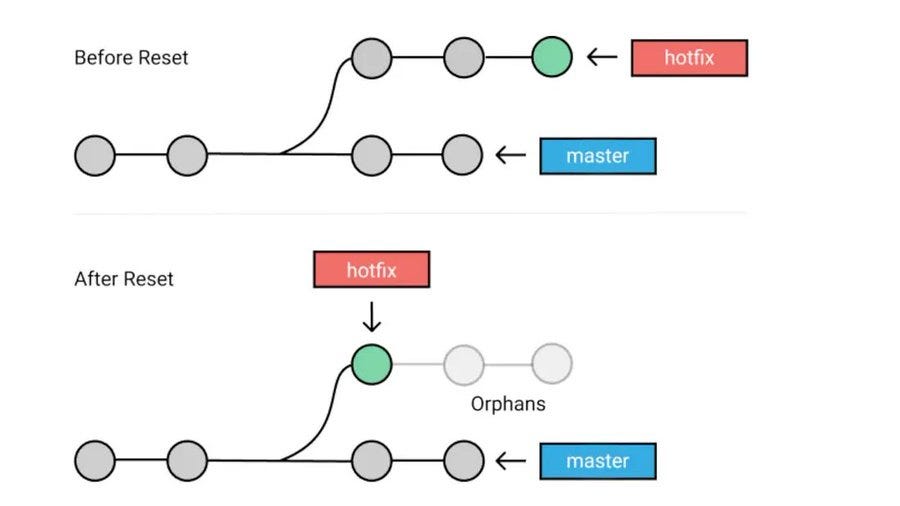
git reset is used to undo commits by moving the HEAD pointer to a previous commit.
It is typically used when you want to modify or remove commits that haven’t been shared with others yet.
Because it rewrites history, it should be used carefully—especially in shared repositories.
Types of Git Reset
Git reset operates in three different modes.
1. Soft Reset
A soft reset moves the HEAD pointer but keeps changes staged.
Command: git reset --soft HEAD~1
Effect:
Removes the last commit
Keeps all changes in the staging area
Use case:
When you want to edit the previous commit.
Example scenario:
You committed code but forgot to add one file.
2. Mixed Reset (Default)
A mixed reset removes the commit and unstages the changes but keeps them in the working directory.
Command: git reset --mixed HEAD~1
Effect:
Removes the last commit
Changes remain in your working directory
Use case:
When you want to re-stage files differently.
3. Hard Reset
A hard reset completely removes commits and deletes changes.
Command: git reset --hard HEAD~1
Effect:
Removes the commit
Deletes staged changes
Deletes working directory changes
Use case:
When you want to completely discard changes.
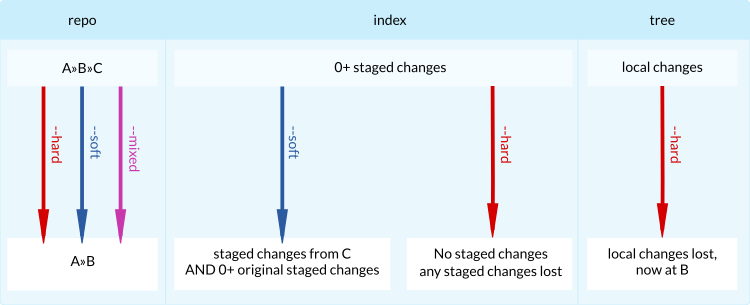
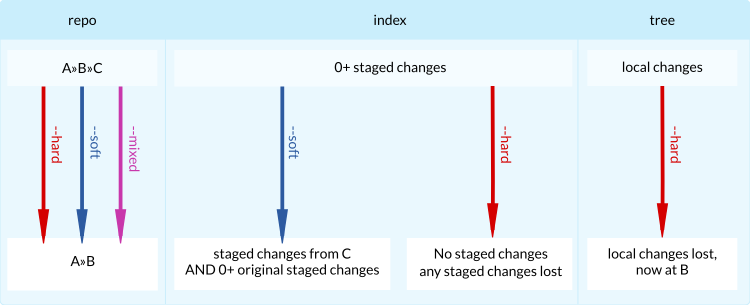
Warning: Hard reset can permanently delete work.
Git Revert: Safely Undoing Commits
What is Git Revert?
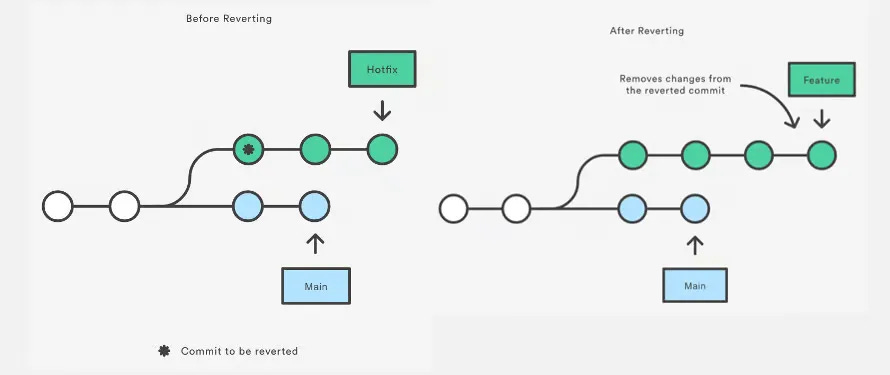
git revert creates a new commit that reverses changes made by a previous commit.
Unlike reset, it does not change commit history.
This makes it safe for shared repositories.
Git Revert Example
Suppose a commit introduced a bug.
You can revert it using: - git revert <commit-id>
Git will:
Create a new commit
Apply the opposite changes of the specified commit
Reverting Multiple Commits
You can revert multiple commits as well.
Example: git revert HEAD~3..HEAD
This command reverts the last three commits.
When Should You Use Git Revert?
Use revert when:
The commit has already been pushed
Other developers may have pulled the changes
You want to maintain a transparent commit history
Example scenarios:
Production bug rollback
Undoing faulty merge commits
Reversing incorrect configuration changes
Git Stash: Saving Work in Progress
What is Git Stash?
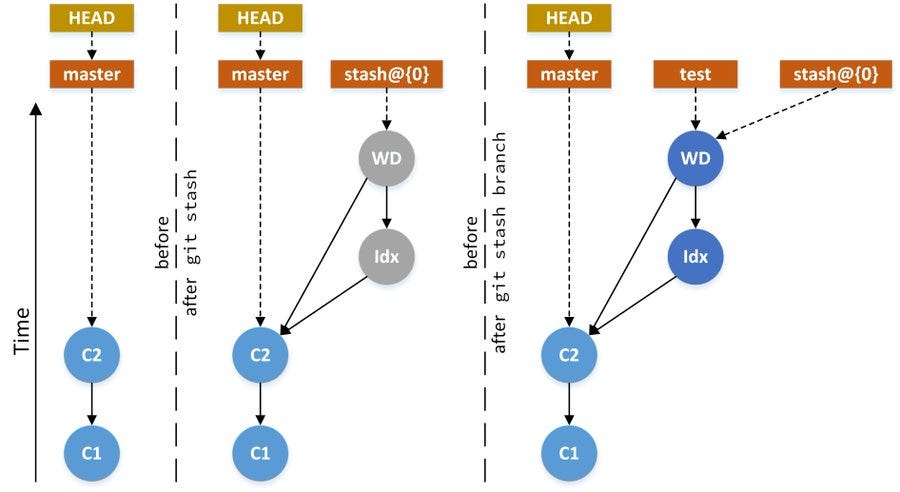
Sometimes you need to switch branches, but your work is incomplete.
git stash temporarily saves your changes so you can return to a clean working directory.
It’s like putting your current work on a temporary shelf.
Basic Git Stash Command
git stash
This command:
Saves your working changes
Restores the working directory to the last commit state
Viewing Stashed Changes
You can view saved stashes using: git stash list
Example output:
stash@{0}: WIP on feature-login
stash@{1}: WIP on payment-module
Applying a Stash
To restore a stash:
git stash apply
This applies the latest stash without removing it.
Applying and Removing a Stash
git stash pop
This command:
Applies the stash
Removes it from the stash list
Naming a Stash
For better organization, you can name your stash.
Example:
git stash push -m “Work in progress on login feature”
When Should You Use Git Stash?
Common scenarios include:
Switching branches to fix urgent bugs
Pulling updates before finishing current work
Temporarily saving incomplete changes
Git Reflog: Recovering Lost Commits
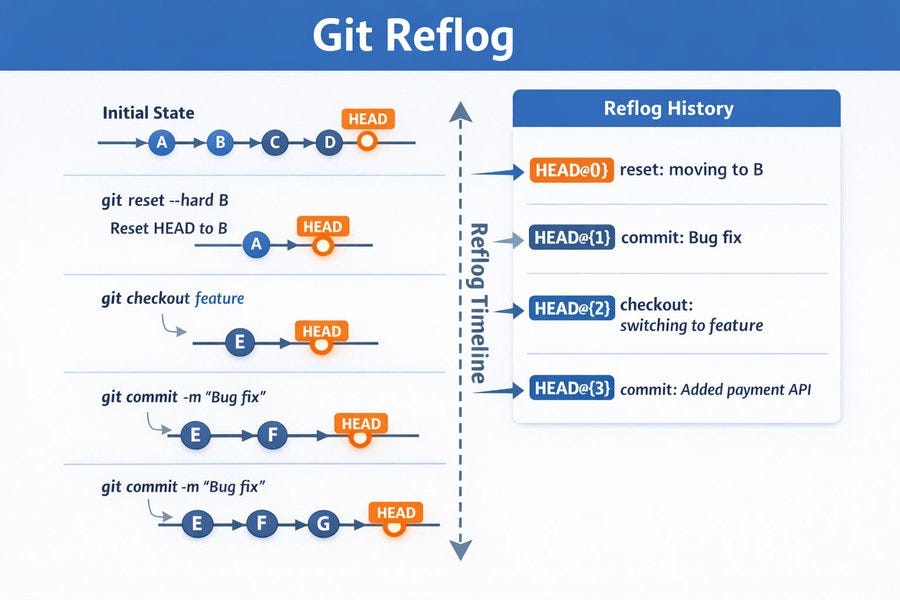
What is Git Reflog?
git reflog is one of Git’s most powerful recovery tools.
It records every movement of the HEAD pointer, including:
Commits
Resets
Checkouts
Rebases
Even if a commit is removed from history, reflog can still help recover it.
Viewing Reflog
Command: git reflog
Example output:
a1b2c3 HEAD@{0}: reset: moving to HEAD~1
d4e5f6 HEAD@{1}: commit: added login feature
g7h8i9 HEAD@{2}: checkout: moving to main
Recovering a Lost Commit
Suppose you accidentally ran: - git reset --hard HEAD~1
Your commit appears lost.
You can recover it using reflog.
Step 1: Find the commit in reflog.
git reflog
Step 2: Restore the commit.
git reset --hard <commit-id>
Your work is restored.
Real-World Recovery Scenarios
Git reflog is extremely useful when:
A branch was accidentally deleted
Hard reset removed commits
Rebase caused loss of changes
Commit history was rewritten
It acts as a safety net for Git history mistakes.
Git Reset vs Revert vs Stash vs Reflog
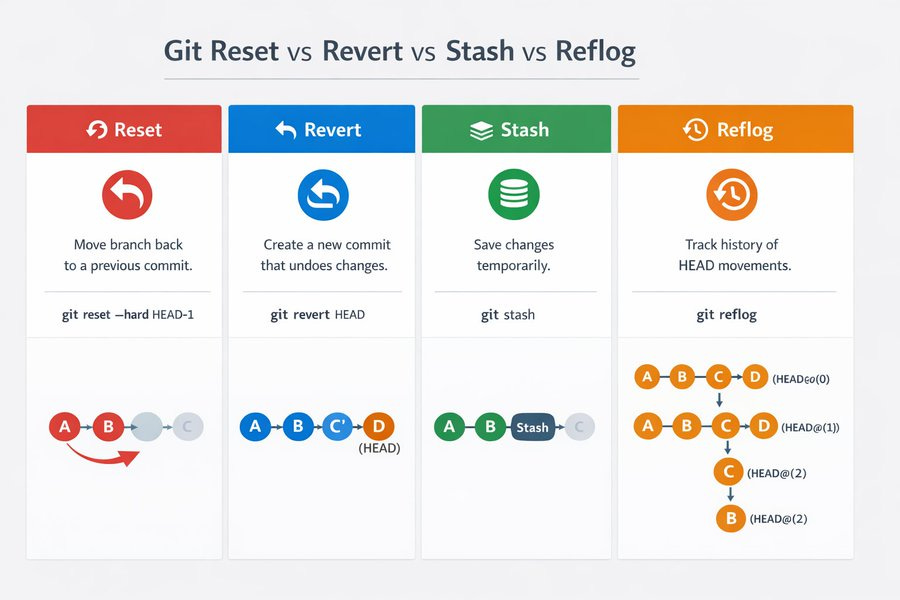
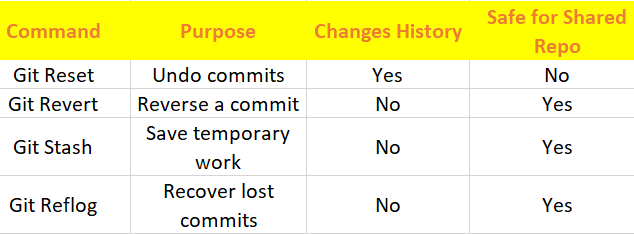
Quick summary:
Reset rewrites history.
Revert safely undoes commits.
Stash temporarily saves work.
Reflog recovers lost history.
Best Practices for Managing Git History
To avoid major issues while working with Git, follow these best practices.
Avoid Hard Reset on Shared Branches
Running: git reset --hard
on a shared branch can disrupt teammates’ work.
Use Revert for Public Commits
If a commit has already been pushed, prefer: git revert
instead of reset.
Use Stash Before Switching Context
Before switching branches, stash unfinished work.
This prevents merge conflicts and lost changes.
Use Reflog as a Recovery Tool
If you ever think your work is lost, run: -git reflog
Chances are, Git still remembers the commit.
Conclusion
Git provides powerful tools not only for tracking changes but also for recovering from mistakes and managing code history effectively. Commands like Git Reset, Git Revert, Git Stash, and Git Reflog form an essential safety net for developers working in fast-paced development environments.
Each command plays a specific role in handling different scenarios:
Git Reset is useful for rewriting local history before sharing commits.
Git Revert provides a safe way to undo changes in shared repositories without altering commit history.
Git Stash helps developers temporarily store unfinished work when switching tasks or branches.
Git Reflog acts as a powerful recovery tool that can restore commits even after accidental resets or rebases.
Mastering these commands not only improves your Git workflow but also increases confidence when working with complex repositories, CI/CD pipelines, and collaborative development teams.
For developers and DevOps engineers, understanding these recovery mechanisms can mean the difference between losing hours of work and recovering it in seconds.
As you continue working with Git, practicing these commands in real scenarios will help you build stronger version control skills and maintain cleaner, safer commit histories.
If you want to become truly proficient with Git, learning how to recover, revert, and manage history effectively is just as important as committing code.